Patient Registry
Tracking Registration
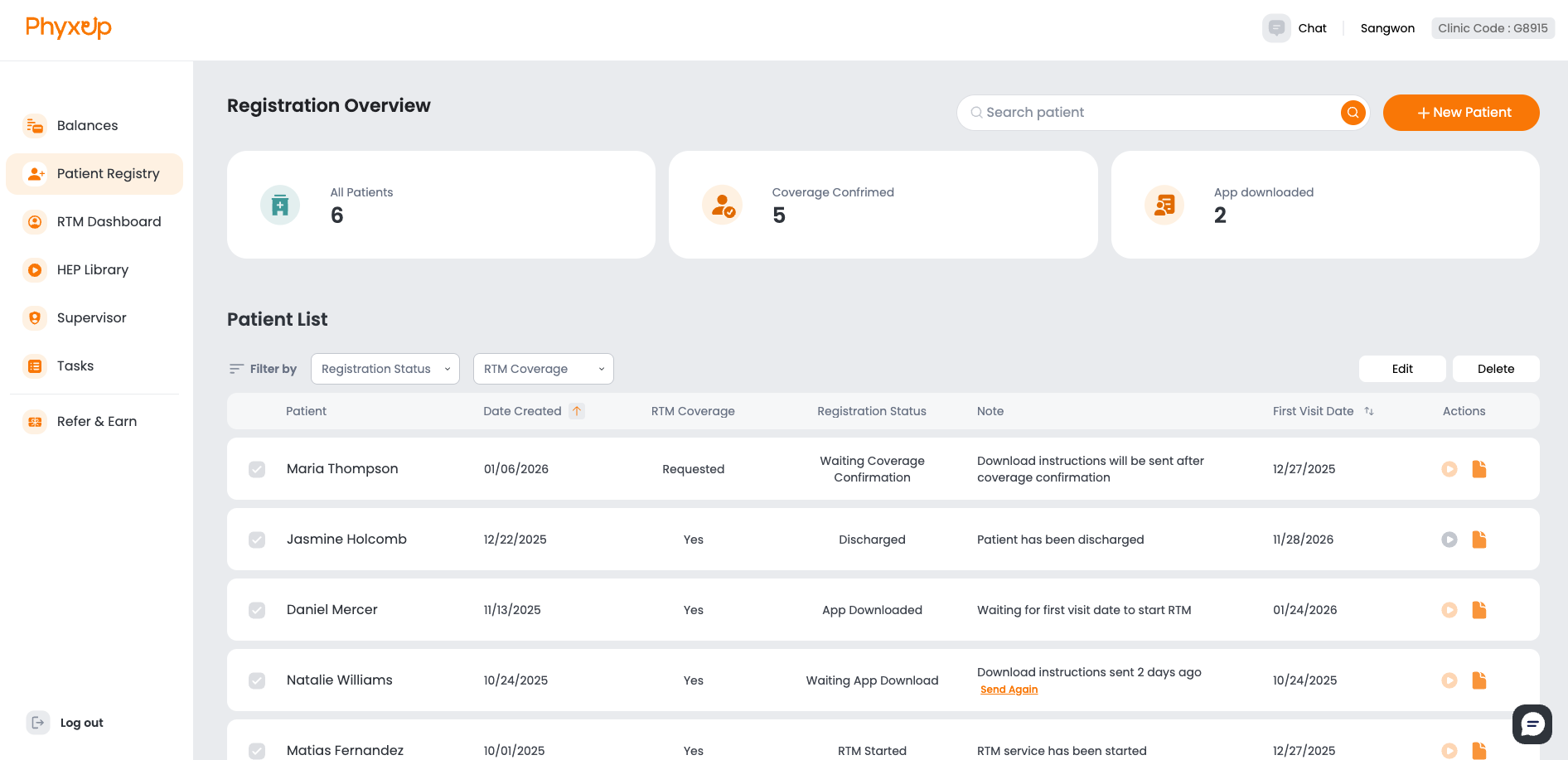
The Patient Registry allows you to track each patient’s onboarding progress in one place. It displays all patients created on the platform, their current registration status, and any notes highlighting required actions or outstanding steps in the onboarding process. You can use the sorting and filtering tools to organize your patient list and easily track each registration status.
To successfully onboard a patient, all of the following requirements must be met:
- Insurance coverage has been verified for RTM CPT codes (98975, 98985, 98977, 98979, 98980, 98981)
- The PhyxUp Health mobile app has been downloaded
- The patient has completed at least one in-person clinic visit
A patient will appear on the RTM Dashboard as onboarded only after all three requirements have been met. Patients who have not completed onboarding cannot be monitored or billed for RTM services.
Creating a Patient
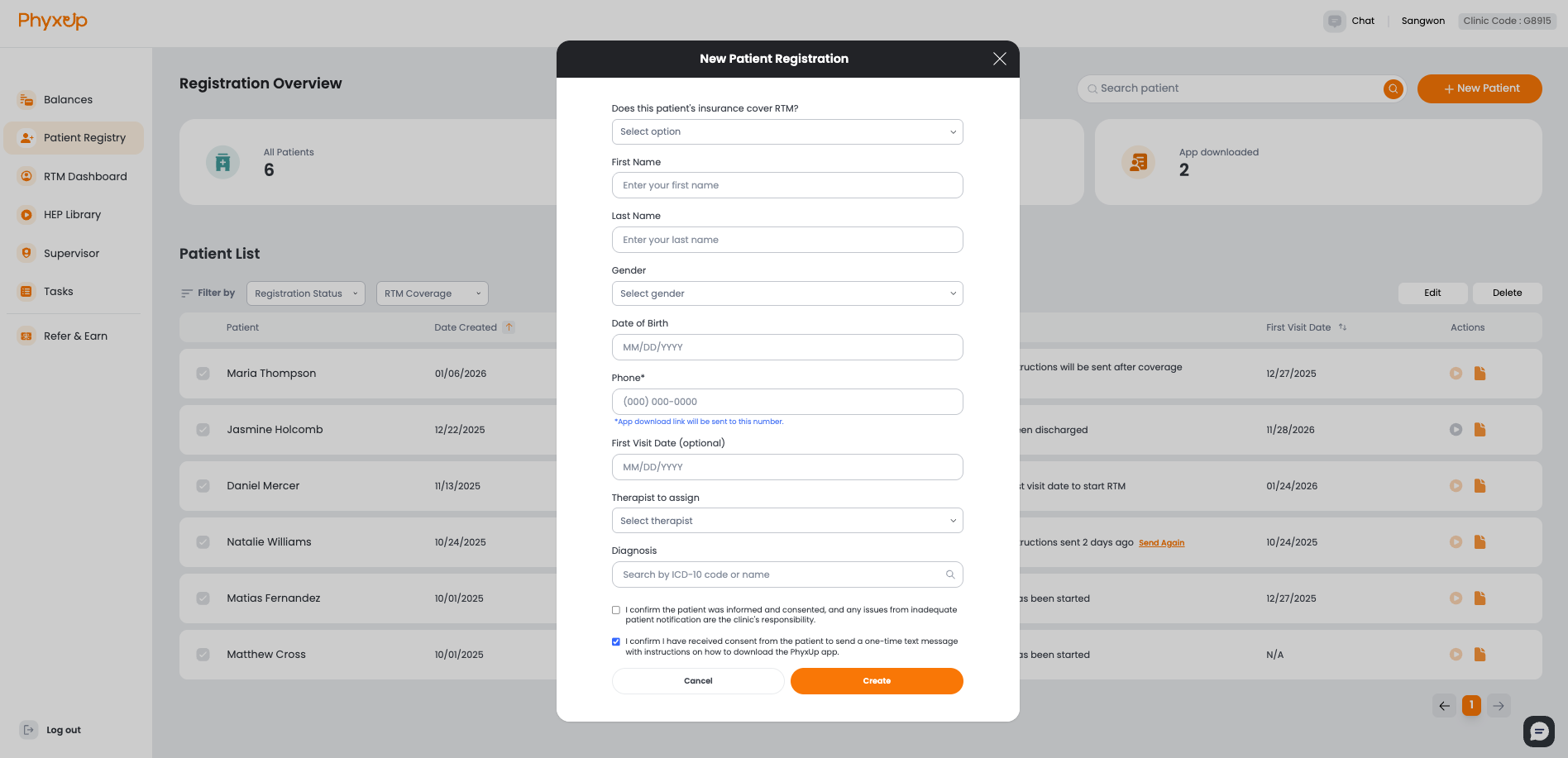
To create a new patient, select + New Patient in the top-right corner of the Patient Registry. Complete all required fields and confirm that the patient has provided consent and received education regarding the RTM service. If you are creating a patient before their initial in-clinic visit, enter an expected first visit date in the future. If the patient has already completed an in-person visit, reference the first visit date from the clinic’s EMR.
You may assign HEPs to patients before they are fully onboarded or before RTM services begin. Click the play icon on the right side of the patient’s row to open the individual patient dashboard and assign HEPs.